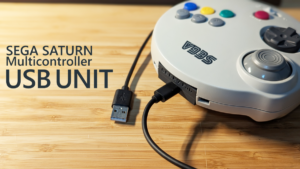
A USB extension unit for the Sega Saturn 3D Control Pad, known in Japan as the Sega “Multi Controller” (“Marucon”).
Where to Buy
Tindie (For orders from outside Japan — Tindie ships worldwide.)GEEKY Fab. BOOTH Store (For orders within Japan.)
Product Overview
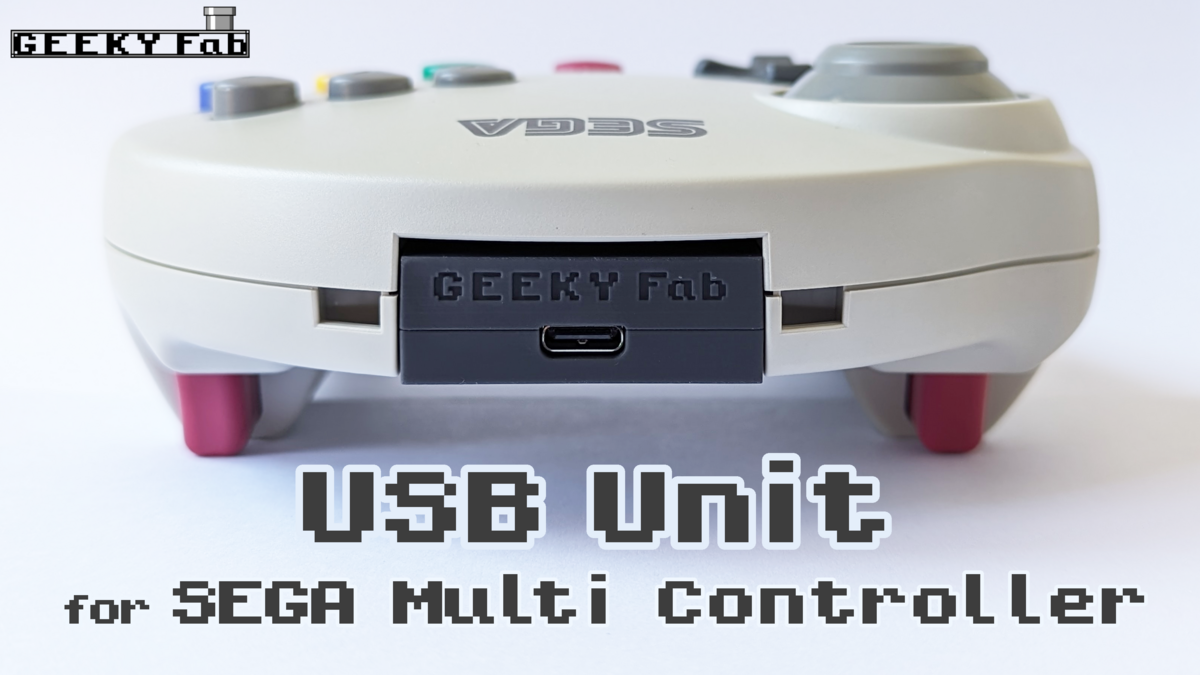
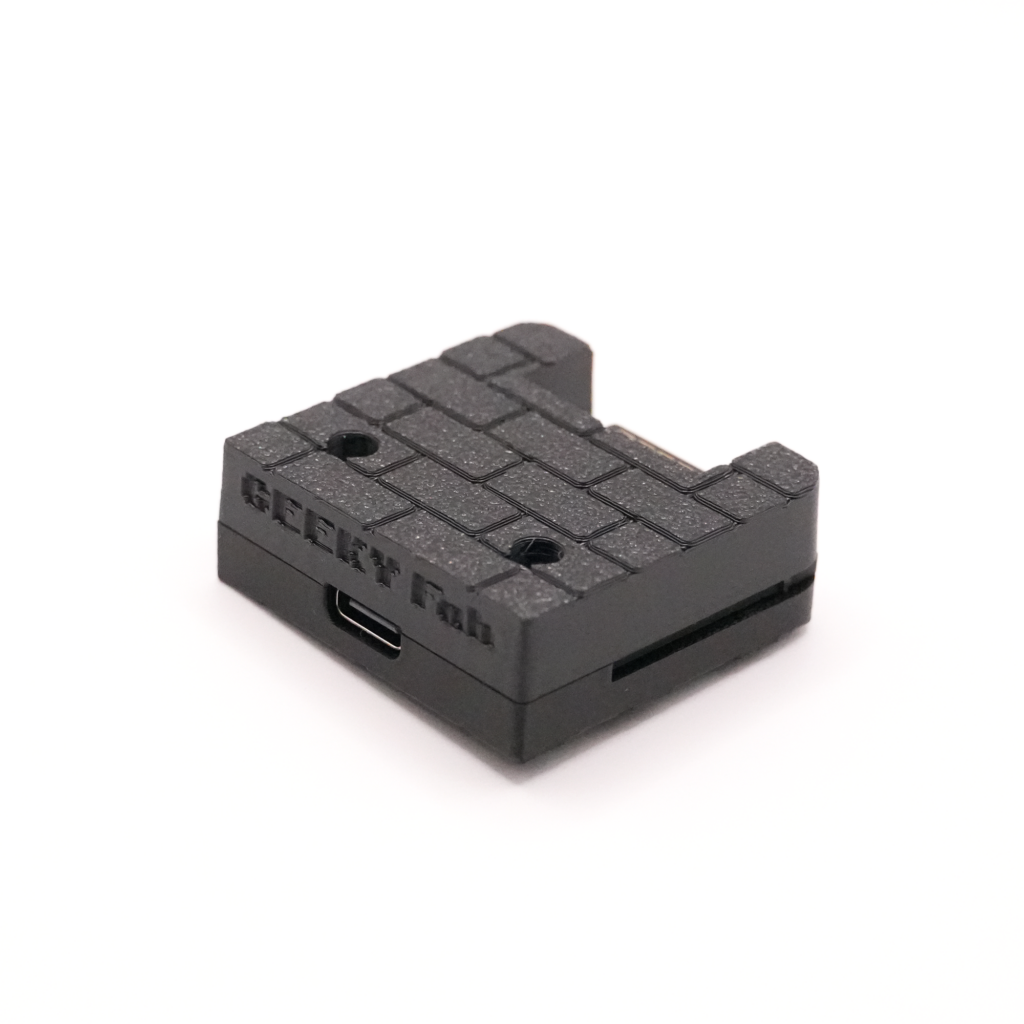
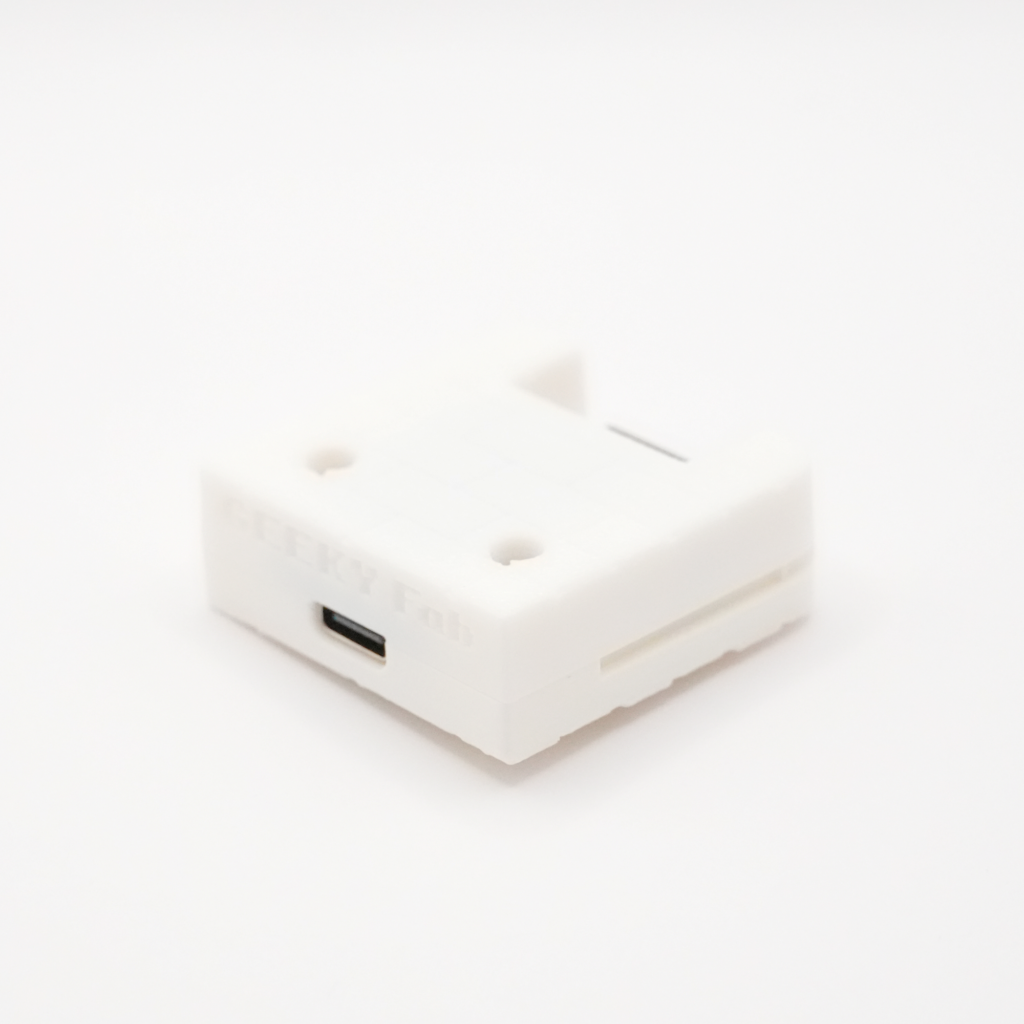
This is an extension unit for turning the Sega Saturn 3D Control Pad (Marucon) into a USB device.
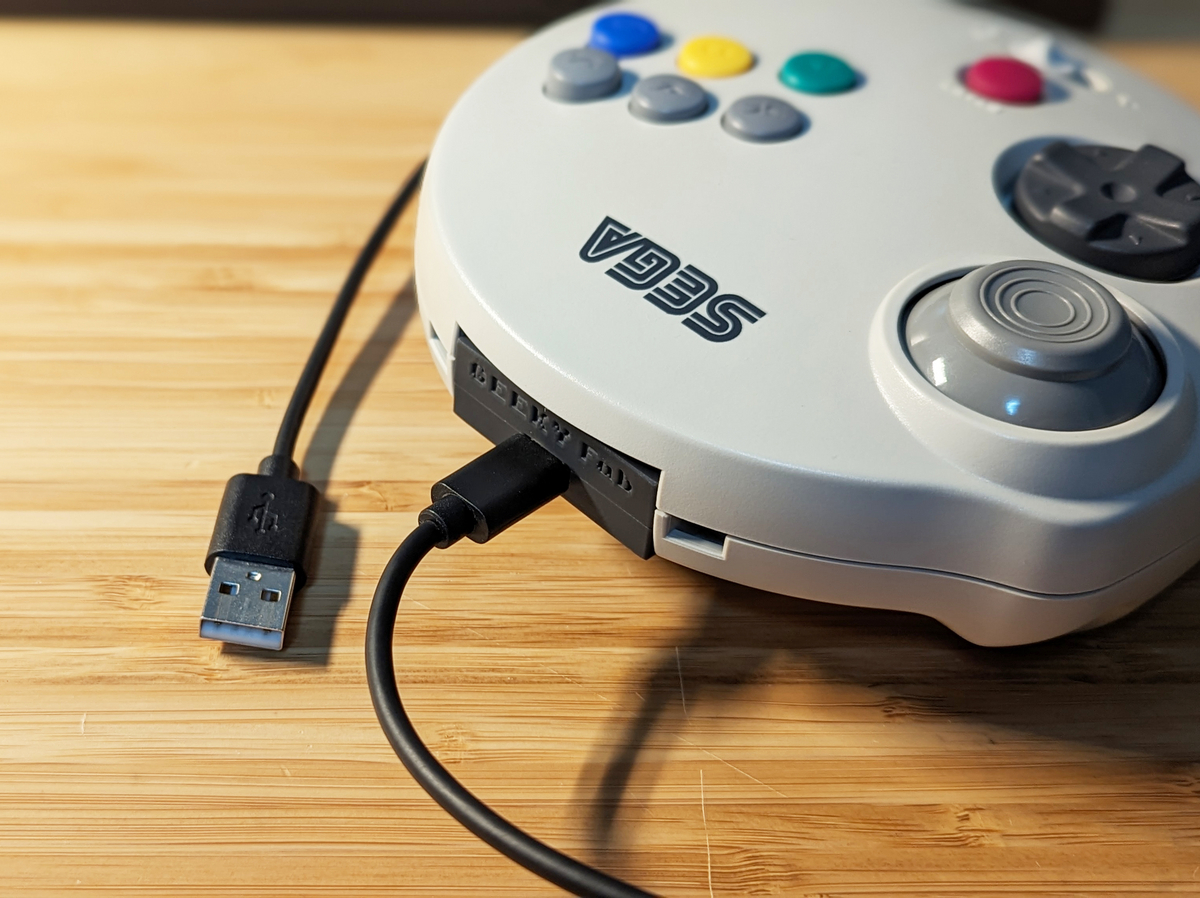
By swapping the standard unit for this product, your 3D Control Pad becomes usable as a USB gamepad.
The USB connector is Type-C.
* The USB cable is not included with the product, so please prepare your own.
The firmware is published as open source, so users can edit it freely.
You can flash the edited firmware over USB.
Demo
Product Features
Turn Your 3D Control Pad into USB in One Step
By swapping the standard unit for this product, your 3D Control Pad becomes usable as a USB gamepad.
Please connect the USB cable while this product is attached to the 3D Control Pad.
If you connect this product to a PC or similar with a USB cable while it is not attached to the 3D Control Pad, it will start up in firmware flashing mode.
Button mapping
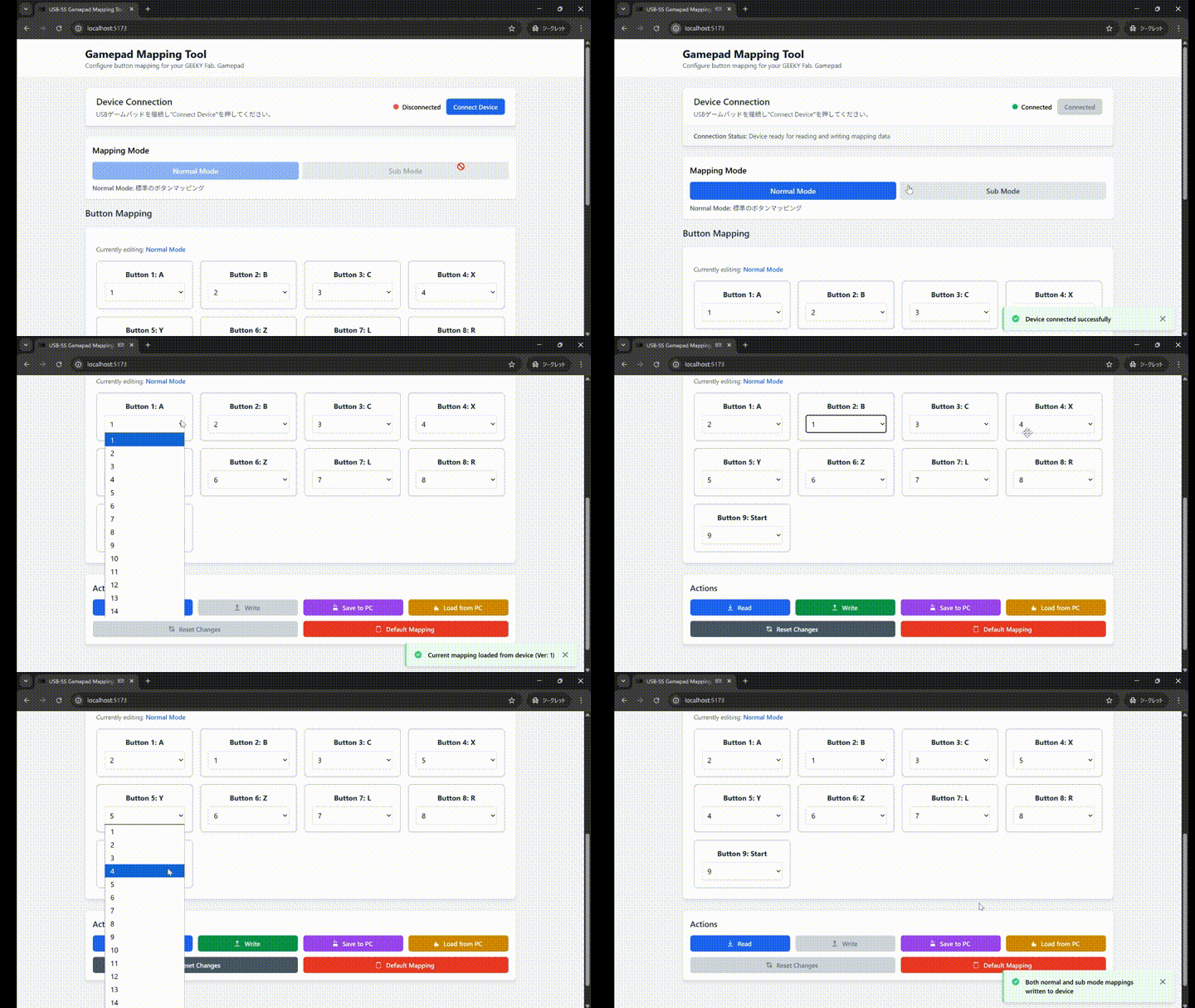
You can freely rewrite the button mapping using a web tool.
The rewritten mapping is saved on the controller, so you can keep playing with your configured mapping even after you swap to a different PC or game console.
Freely Rewritable Firmware
The firmware source code for past versions is published as open source.
https://github.com/takusan213/usb-ss3d-gamepad
Firmware can be flashed over USB.
By plugging the USB into a PC while the extension unit is not inserted into the 3D Control Pad, this product starts up in firmware flashing mode.
Supports the Mode Switch
It supports the mode switch on the 3D Control Pad itself.
The button assignments in + mode / 〇 mode are as follows (with the standard firmware).
| 3D Control Pad Button | + Mode | 〇 Mode |
|---|---|---|
| A | 1 | 1 |
| B | 2 | 2 |
| C | 3 | 3 |
| X | 4 | 4 |
| Y | 5 | 5 |
| Z | 6 | 6 |
| L | 7 | Z axis |
| R | 8 | Z rotation axis |
| start | 9 | 9 |
| Analog stick | Not active | X axis / Y axis |
| D-pad | Hat switch | Hat switch |
| Back-of-unit switch (Plus version only) | 12 | 12 |
Button on the Back of the Unit
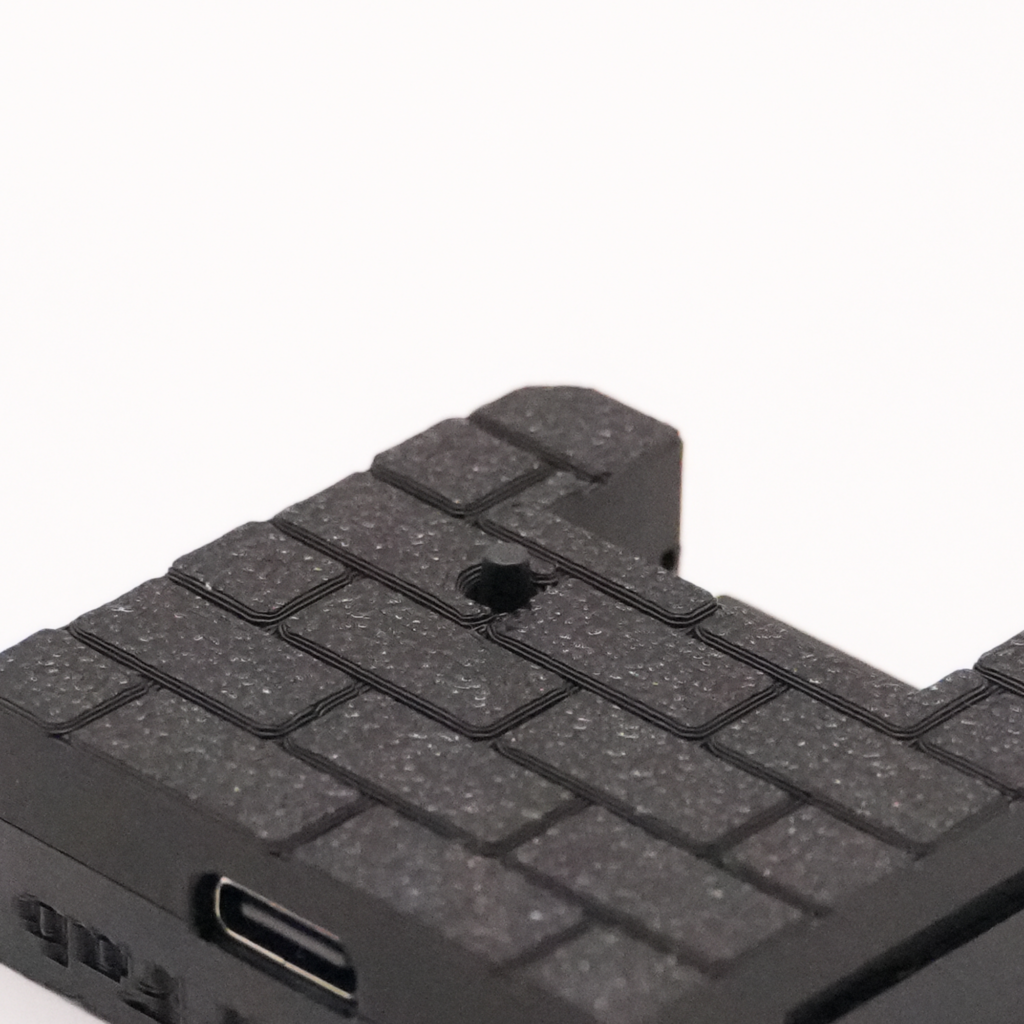
The current model, the “Marucon USB Extension Unit Plus,” has a button on the back of the unit.
This button is assigned to “12” in the standard firmware, “back” in the Xinput firmware, and “-” in the Switch firmware.
This extra button lets you cover buttons other than the stick press, so you can now play more games comfortably.
Tested OS / Game Consoles
- Retro Freak
- Windows10
- Windows11
- Raspberry PI 3
- Raspberry Pi OS
- Recalbox for RASPBERRY PI 3
- RetroPi 4.7.1 for RASPBERRY PI 2/3
- Raspberry PI 4
- Raspberry Pi OS
- Recalbox for RASPBERRY PI 4/400
- RetroPi 4.7.1 for RASPBERRY PI 4/400
- switch (requires flashing the firmware listed at the end of this article)
Consoles Reported Working by Users
The following consoles have been reported as working by our users.
- POLYMEGA
- Requires flashing the Xinput firmware (the firmware is listed at the end of this article)
- Turning on the analog setting in the in-game controller settings makes the analog stick work
Thanks to research by ruka ( @ruka_riker ), we learned the following about POLYMEGA support for the Marucon USB Extension Unit.
– It’s recognized when you use the xinput firmware
– Turning on the analog setting in the in-game controller settings makes the analog stick work https://t.co/AZ4Q1jd7gS— Takusan 🐦 GEEKY Fab. (@takusanToIssho) September 1, 2023
Product Photos
Testing
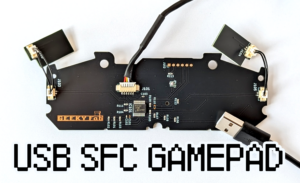
The testing method is the same as for the USB Conversion PCB Kit for SNES / SFC Controllers.
Please see the page below for details.
About Controller Settings on Steam
If you use it on Steam with the standard firmware, please configure it from Big Picture mode.
This page is a helpful reference.
Steam Controller Settings: How to Customize from the Gamepad Screen – Apple Geek LABO
If the controller is not recognized in Big Picture mode, open Steam’s Settings → Controller → General Controller Settings, select “SS3D Gamepad,” and assign the buttons.
If you use the xinput firmware, the above setup isn’t needed.
About Flashing Firmware
Web Tool for Flashing Firmware
We provide a firmware flashing tool.
You can use it with no installation required.
See this page for how to use it.
List of Released Firmware
You can find the latest firmware on the page below.
Latest Firmware ListBelow are descriptions of each firmware.
Original Firmware
This is the firmware flashed at the time of purchase.
It works as a DirectInput gamepad.
It supports the button mapping tool.
ABXY Swap Function
By holding the start button and D-pad up for one second or more, you can swap the button assignments of A and B, and X and Y.
Xinput Version
This is a version that supports Xinput.
Button Assignments
| 3D Control Pad Button | + Mode | 〇 Mode |
|---|---|---|
| A | A | A |
| B | B | B |
| C | R1 | R1 |
| X | X | X |
| Y | Y | Y |
| Z | L1 | L1 |
| L | Left stick press | L Trigger |
| R | Right stick press | R Trigger |
| start | start | start |
| Analog stick | Not active | Left stick |
| D-pad | D-pad | D-pad |
| Back-of-unit switch (Plus version only) | back | back |
ABXY Swap Function
By holding the start button and D-pad up for one second or more, you can swap the button assignments of A and B, and X and Y.
LR / CZ Swap Function
By holding the start button and D-pad down for one second or more, you can swap the button assignments of L and Z, and R and C.
D-pad Switch Function
By holding the start button and D-pad left for one second or more, you can switch the D-pad’s function from “D-pad” to “right stick.”
To summarize the functions:
| Button Combo (Hold) | Function |
|---|---|
| start + ↑ | AB / XY swap |
| start + ↓ | LR / CZ swap |
| start + ← | D-pad mode change |
Switch Version
This is a version that supports the Switch.
It supports the button mapping tool.
Button Assignments
| 3D Control Pad Button | + Mode | 〇 Mode |
|---|---|---|
| A | A | A |
| B | B | B |
| C | R | R |
| X | X | X |
| Y | Y | Y |
| Z | Z | Z |
| L | ZL | ZL |
| R | ZR | ZR |
| start | plus | plus |
| Analog stick | Not active | Left stick |
| D-pad | D-pad | D-pad |
| Back-of-unit button | minus | minus |
ABXY Swap Function
By holding the start button and D-pad up for one second or more, you can swap the button assignments of A and B, and X and Y.
LR / CZ Swap Function
By holding the start button and D-pad down for one second or more, you can swap the button assignments of L and Z, and R and C.
D-pad Switch Function
By holding the start button and D-pad left for one second or more, you can switch the D-pad’s function from “D-pad” to “right stick.”
To summarize the functions:
| Button Combo (Hold) | Function |
|---|---|
| start + ↑ | AB / XY swap |
| start + ↓ | LR / CZ swap |
| start + ← | D-pad mode change |
Polymega Version
This version is based on the Xinput version, with the button layout optimized for Polymega.
Button Assignments
| 3D Control Pad Button | + Mode | 〇 Mode |
|---|---|---|
| A | A | A |
| B | B | B |
| C | select | C |
| X | X | X |
| Y | Y | Y |
| Z | home | Z |
| L | Left stick press | L Trigger |
| R | Right stick press | R Trigger |
| start | start | start |
| Analog stick | Not active | Left stick |
| D-pad | D-pad | D-pad |
| Back-of-unit switch (Plus version only) | select | select |
Special Functions
| Button Combo (Hold) | Function |
|---|---|
| start + ↑ | AB / XY swap |
| start + ↓ | LR / CZ swap |
| start + ← | D-pad mode change |
Polymega Saturn-Optimized Version
v.poly.1.0.B.hex
When you play Saturn or Mega Drive games on Polymega, some fighting games have button assignments that differ from the standard layout.
This firmware registers different button assignments for + mode and 〇 mode, optimized for the Polymega behavior described above.
For most games use 〇 mode; for some fighting games use + mode.
This firmware came out of user feedback.
I made one. https://t.co/VTJFGQDeeb
In + mode it uses the xinput layout, and in 〇 mode the polymega layout.
— Takusan 🐦 GEEKY Fab. (@takusanToIssho) May 6, 2024
Button Assignments
| 3D Control Pad Button | + Mode | 〇 Mode |
|---|---|---|
| A | A | A |
| B | B | B |
| C | C | C |
| X | X | X |
| Y | Y | Y |
| Z | Z | Z |
| L | L | L |
| R | R | R |
| start | start | start |
| Analog stick | Not active | Left stick |
| D-pad | D-pad | D-pad |
| Back-of-unit switch (Plus version only) | home | home |
Special Functions
| Button Combo (Hold) | Function |
|---|---|
| start + ↑ | AB / XY swap |
| start + ↓ | LR / CZ swap |
| start + ← | D-pad mode change |
Firmware Release History
| Release Version | Summary |
|---|---|
| v.1.0.0 | Initial release |
| v.1.1.0 | Added ABXY swap function |
| v.2.0.0 | Added support for the Plus version (the version with buttons added on the back of the unit) |
| v.3.0.0 | Added XV support |
| v.4.0.0 | Added mapping tool support |
Xinput Firmware Release History
| Release Version | Summary |
|---|---|
| v.xin.1.0.0 | Initial release |
| v.xin.1.1.0 | – Added ABXY swap function – Added analog stick mode switch function |
| v.xin.1.2.0 | Changed the analog stick switch function to a D-pad switch function |
| v.xin.1.3.0 | – Swapped the assignments of C/Z and the L/R buttons in + mode – Added LR / CZ swap function |
| v.xin.2.0.0 | Added support for the Plus version (the version with buttons added on the back of the unit) |
| v.xin.2.0.1 | Fixed a bug where the ABXY swap function was on by default |
| v.xin.3.0.0 | Added XV support |
Switch Firmware Release History
| Release Version | Summary |
|---|---|
| v.switch.1.0.0 | Initial release |
| v.switch.1.1.0 | Added LR / CZ swap function |
| v.switch.1.2.0 | – Changed so that in + mode, C, Y, Z are assigned to select, capture, home – Changed the analog stick mode switch function to a D-pad mode switch function |
| v.switch.2.0.0 | Added support for the Plus version (the version with buttons added on the back of the unit) |
| v.switch.3.0.0 | Added XV support |
| v.switch.4.0.0 | Added mapping tool support |
Build Diary