
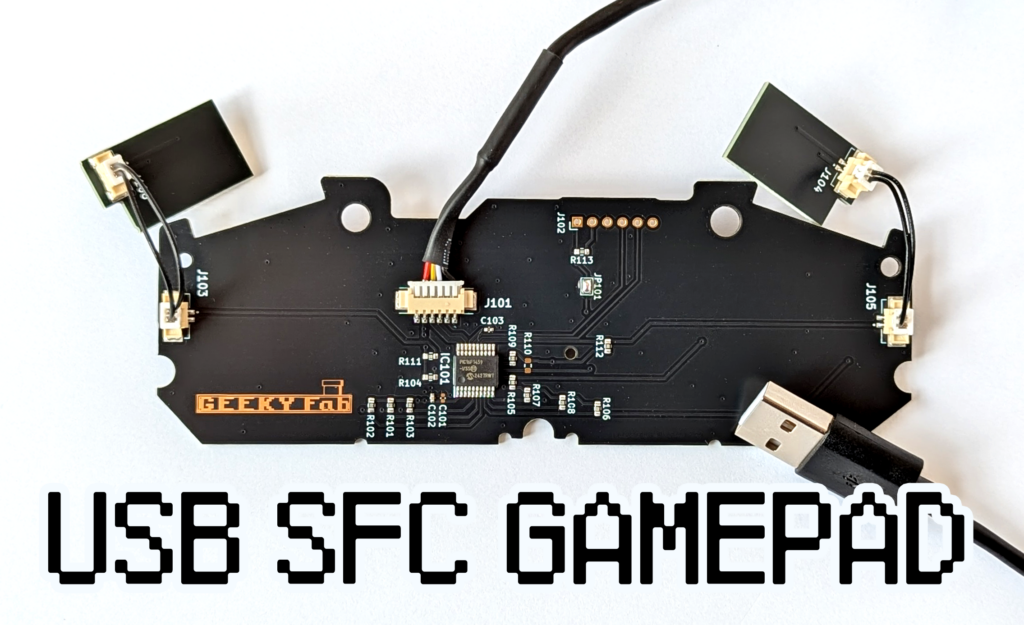
Let’s play with that SFC (SNES) controller you have such fond memories of.
Where to buy
GEEKY Fab. BOOTH Store(BOOTH ships worldwide through Buyee / tenso.com, so you can order this from outside Japan.) Kaden no Ken-chan
Switch Science (kit) [Discontinued]
Product overview
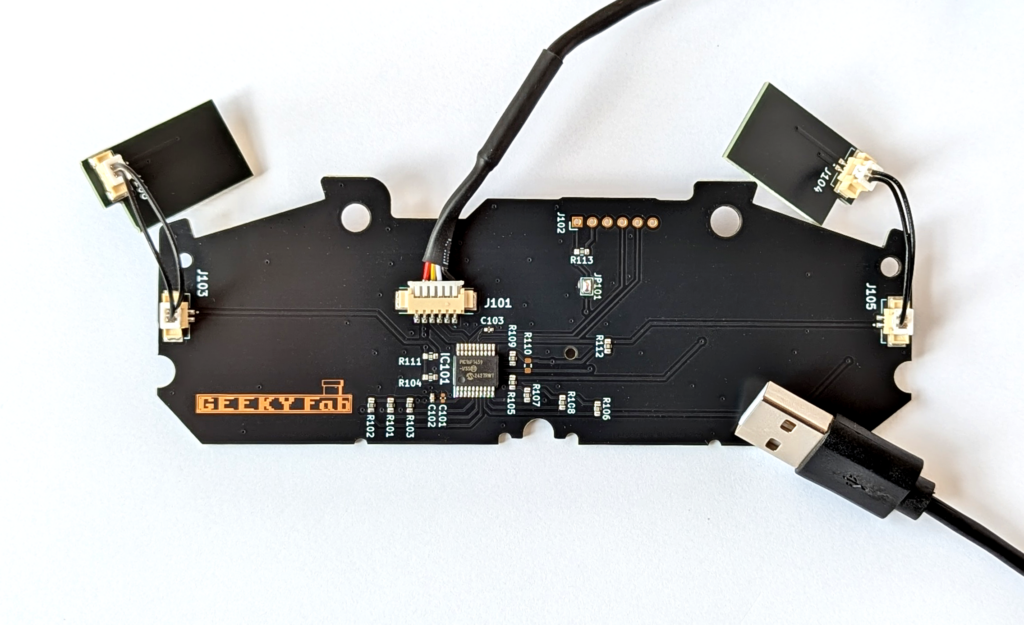
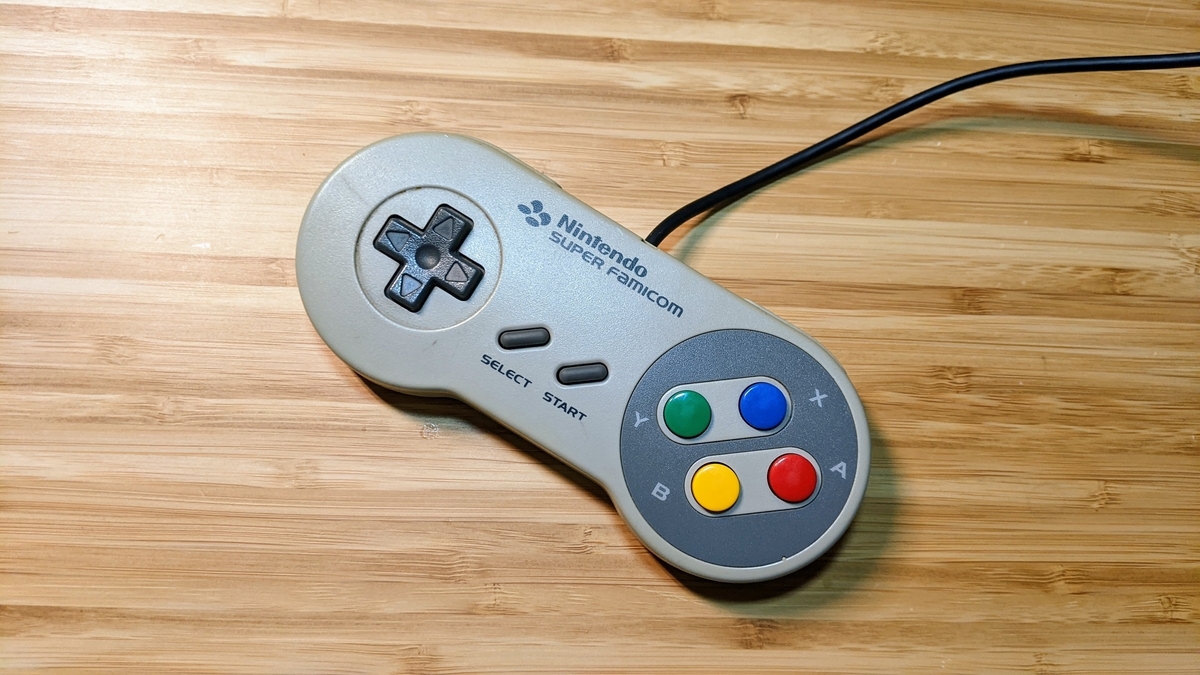
This is a board for converting a Super Famicom (SFC) controller into a USB gamepad.
You can play retro games, of course, but also the latest games distributed on Steam.
The only tool you need to assemble it is a single precision screwdriver.
The firmware is run as open source, so users are free to edit it.
By editing the firmware, you can implement things like macros and rapid-fire.
You can flash the edited firmware over USB.
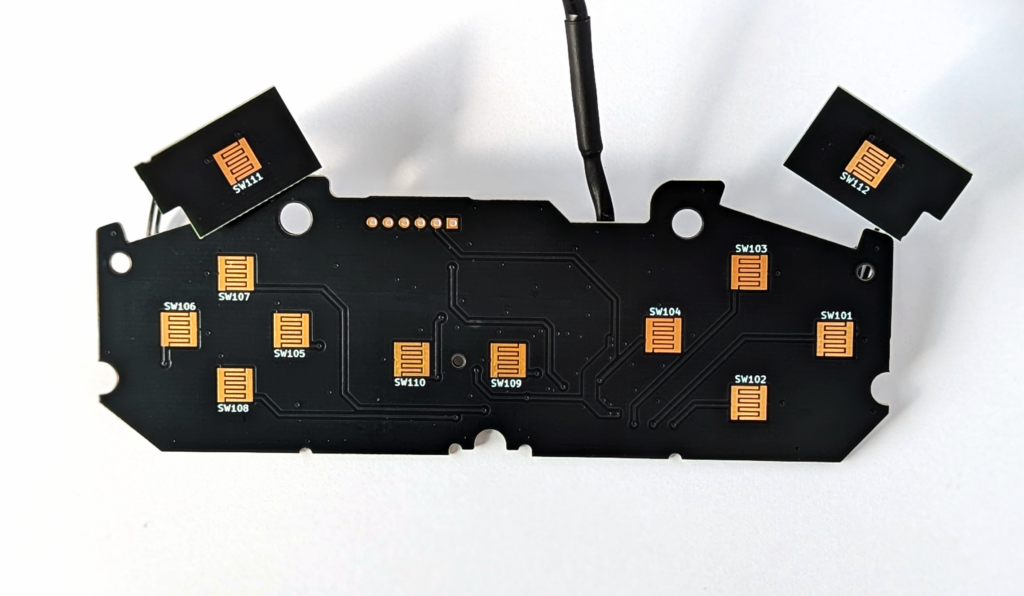
Product photos
Product features
A couple of slightly unusual features
In addition to the basic gamepad features, it supports the following two features to make up for the SFC controller’s small number of buttons.
Double button assignment
B, X, Y, L, and R each have two different buttons assigned to them.
You can switch between the two sets by holding the start button for 3 seconds or more.
* On firmware v1.2.0 and later, hold start+R together for 1 second or more.
D-pad mode switching
You can switch the D-pad between analog joystick mode, hat switch mode, and Z-axis / Z-rotation mode.
You can switch modes by holding the select button for 3 seconds or more.
* On firmware v1.2.0 and later, hold start+L together for 1 second or more.
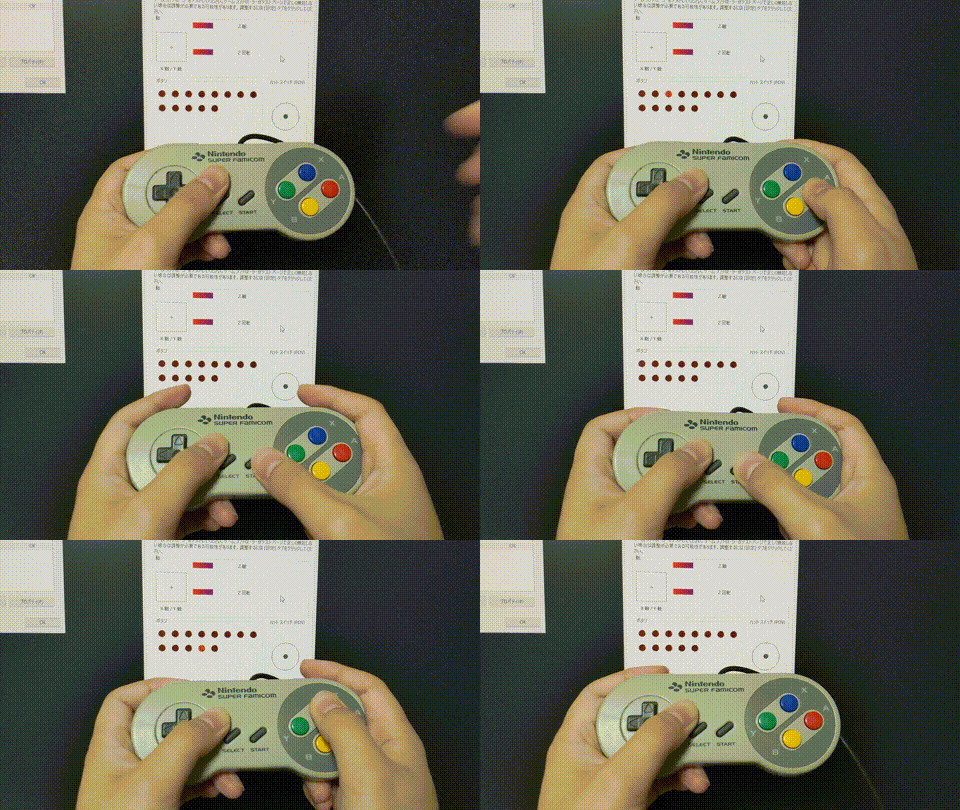
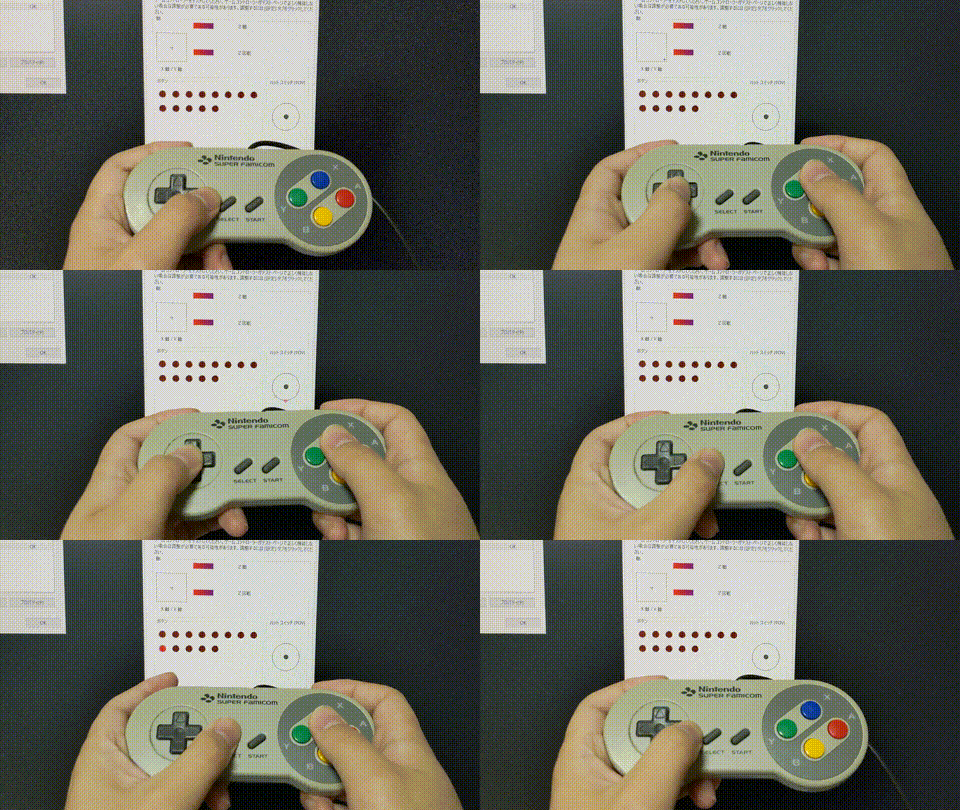
To sum it up, it looks like this.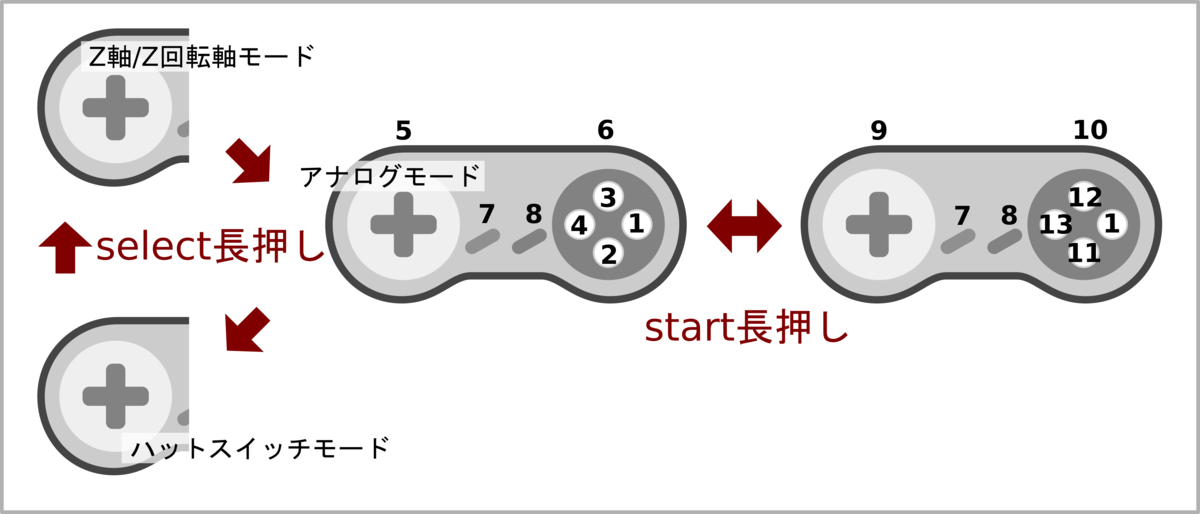
Freely rewritable firmware
The product’s firmware is published as open source on GitHub, and users are free to edit it.
You can flash the firmware over USB.
If you plug the USB into your PC while holding the select button, the product starts up in firmware flashing mode.
Details on flashing the firmware are explained at the end of this article.
* The USB VID and PID for this product were obtained under a sublicense agreement with Microchip. For that reason, third parties are prohibited from making commercial use of the VID and PID included in this product’s program.
Tested OS / hardware
- Retro Freak
- Windows 10
- Windows 11
- Raspberry Pi 3
- Raspberry Pi OS
- Recalbox for RASPBERRY PI 3
- RetroPi 4.7.1 for RASPBERRY PI 2/3
- Raspberry Pi 4
- Raspberry Pi OS
- Recalbox for RASPBERRY PI 4/400
- RetroPi 4.7.1 for RASPBERRY PI 4/400
- Switch (requires flashing dedicated firmware)
Game consoles users have reported working
The following game consoles are ones that users have reported as working.
Polymega
- Requires flashing the Polymega firmware (described at the end of this article)
CBOX USB V3.0
- We provide firmware with an optimized button layout. (Described at the end of this article.)
Related articles
Other specifications
USB cable length: approx. 1.5 m
How to assemble
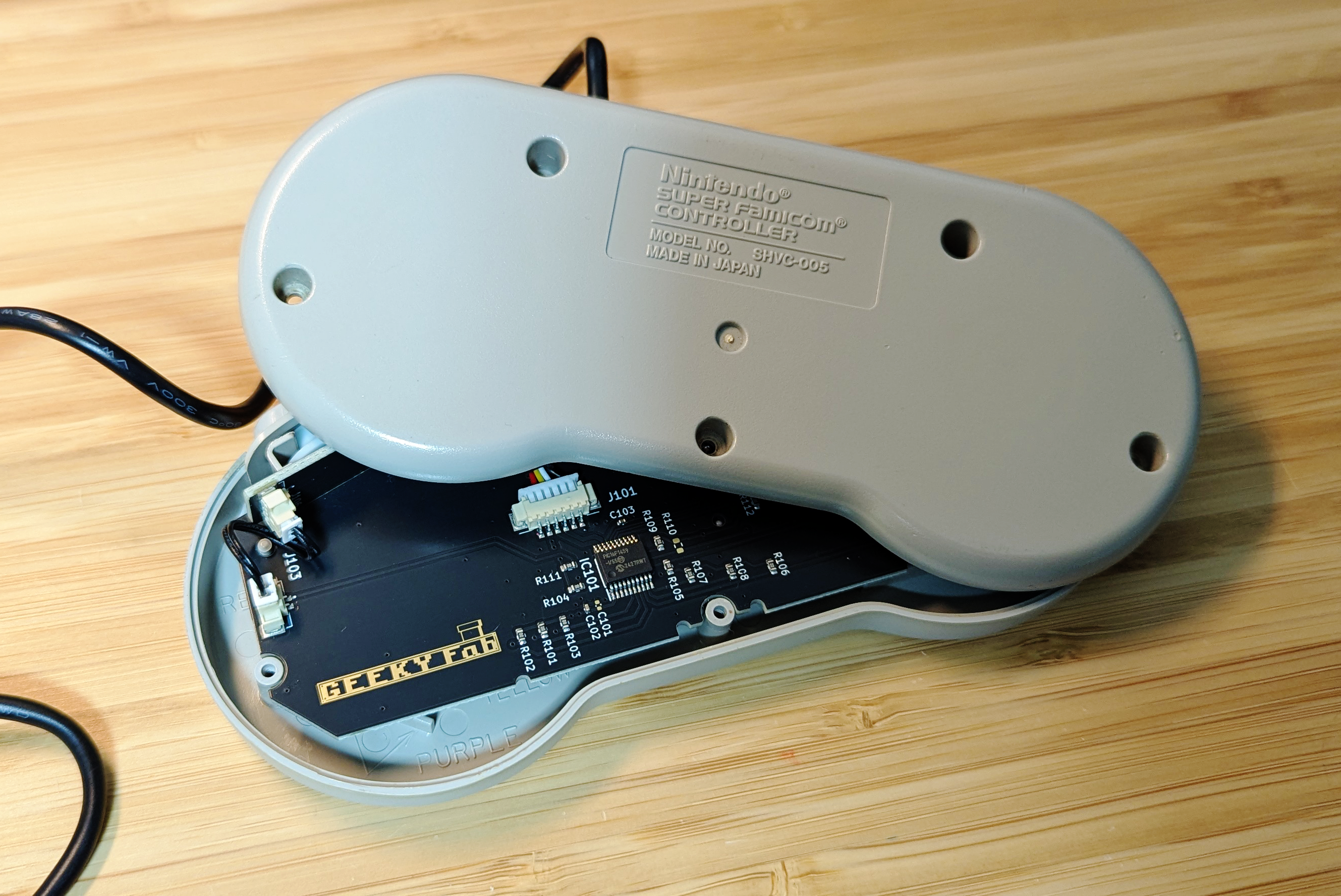
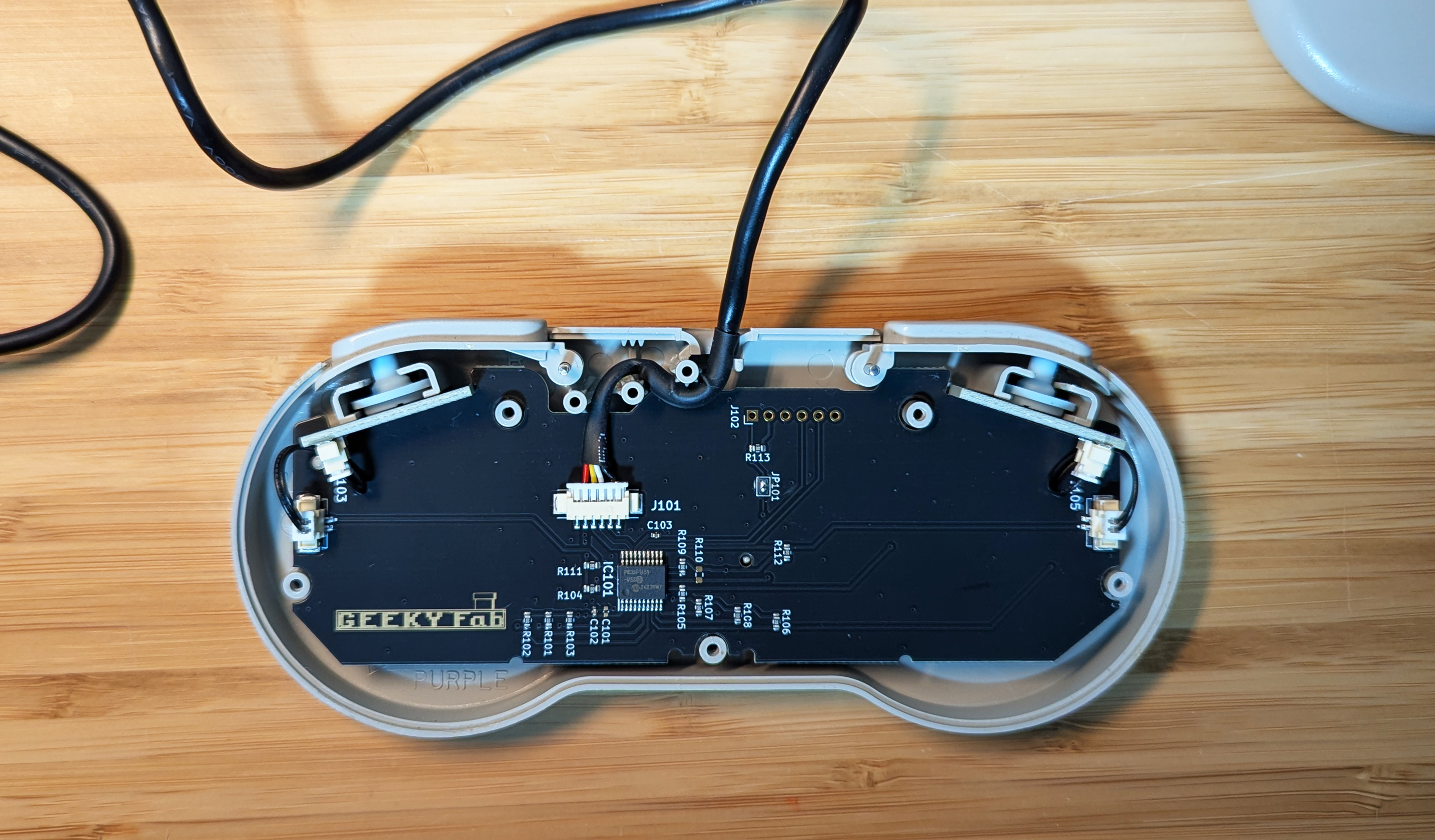
You just swap the internal board with this product.
All you need is a single precision screwdriver.
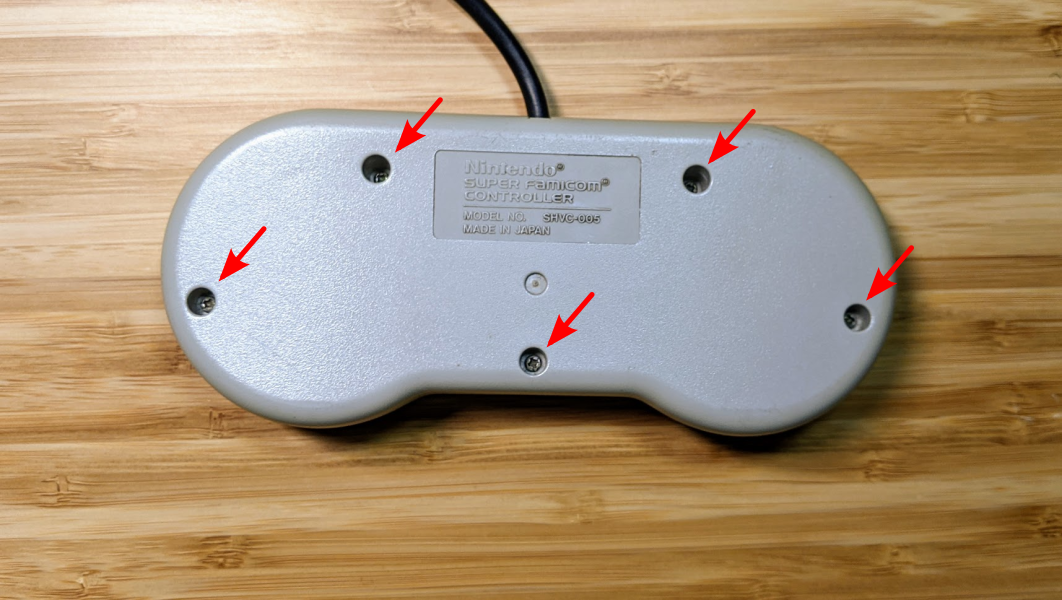
Remove all five screws on the back of the SFC controller.
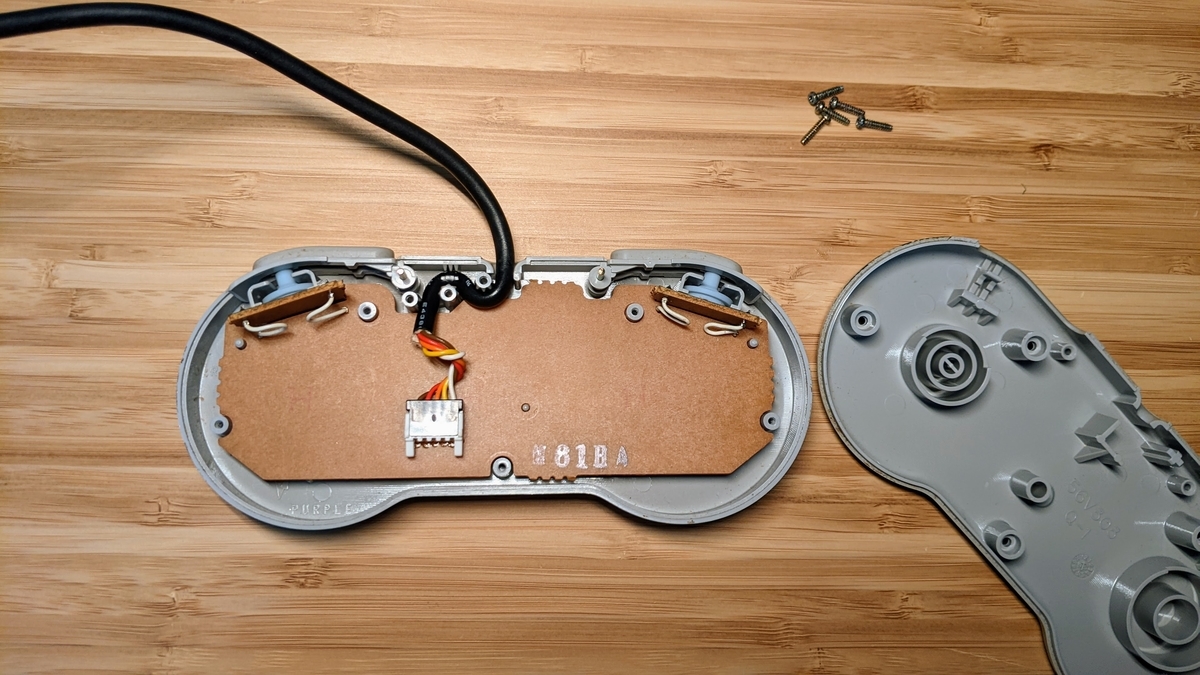
Open the cover.
Remove the internal board.
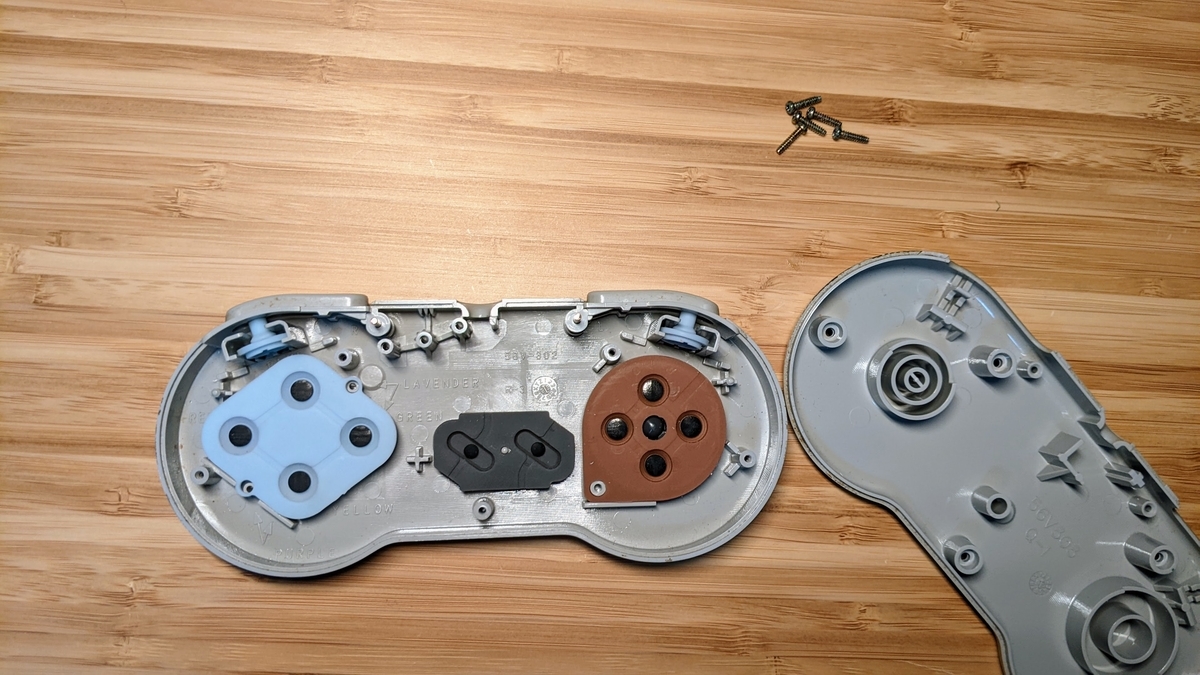
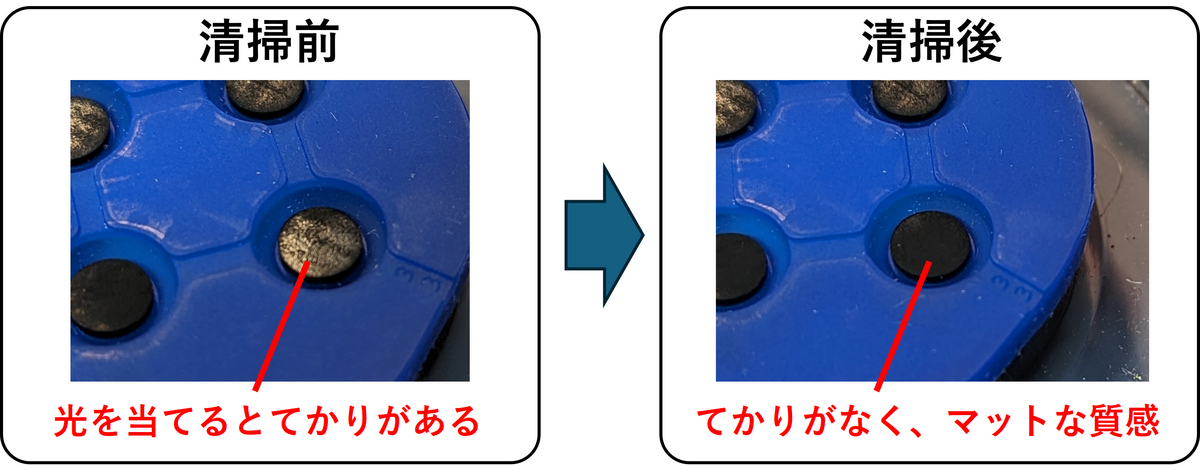
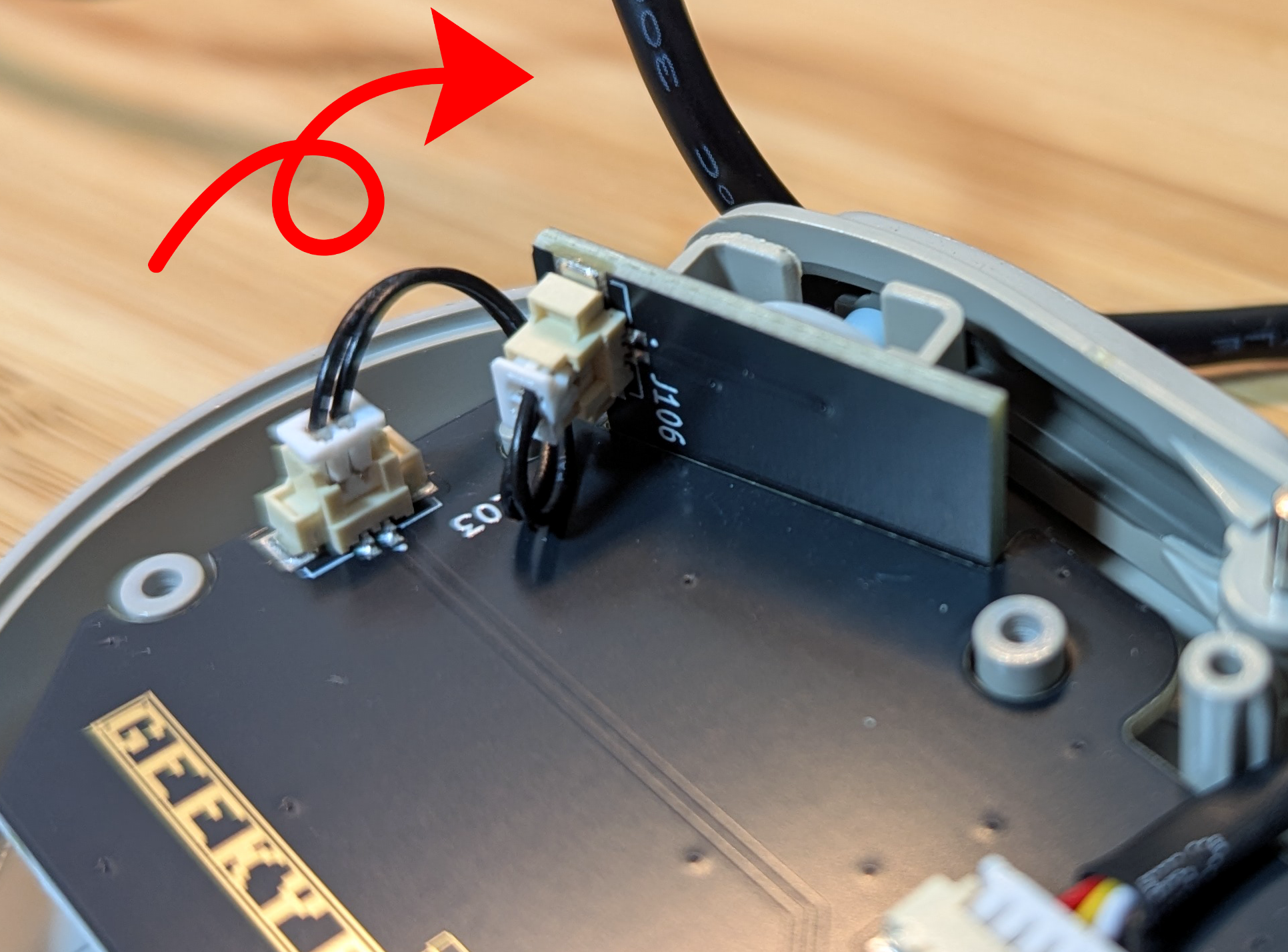
* If the buttons respond poorly, we recommend cleaning the conductive rubber parts with something like a Kimwipe soaked in anhydrous ethanol.Attach the USB gamepad conversion board.
If you give the LR board a little twist before attaching it, you can install it without leaving the harness slack.Close the cover, fasten all the screws, and you’re done.
Testing
Here’s how to test it on Windows 10 and the Raspberry Pi.
How to test on Windows 10
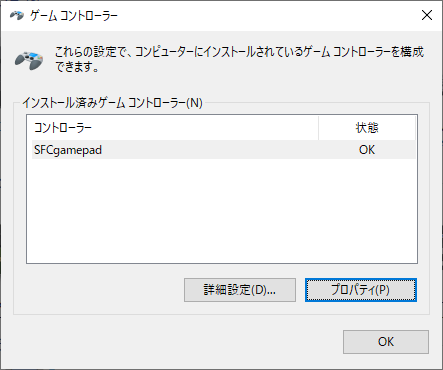
To test on Windows 10, use Windows’ built-in game controller settings feature.
- Connect the gamepad over USB.
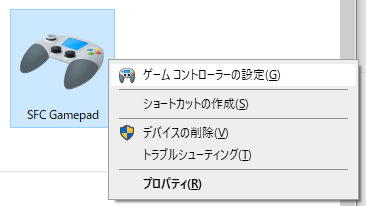
- Go to Control Panel → Hardware and Sound → Devices and Printers, and confirm that SFC Gamepad appears.
- Right-click SFC Gamepad and click “Game controller settings”.
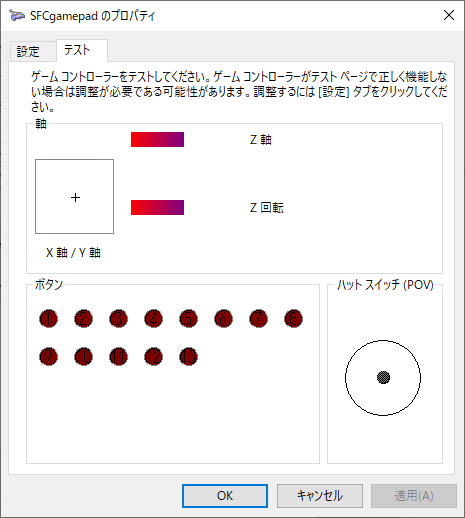
- When the settings screen appears, click the “Properties” button.
- A button test screen appears; use it to test the gamepad here.
How to test on Raspberry Pi (Raspberry Pi OS)
To run a USB gamepad on the Raspberry Pi, install joystick.
Run the following command in the terminal.
sudo apt install joystick
jstest-gtk is handy for testing.
Run the following command in the terminal.
sudo apt install jstest-gtk
You can launch jstest-gtk from Start menu → System Tools → jstest-gtk.
Plug the USB gamepad into the Raspberry Pi and test it.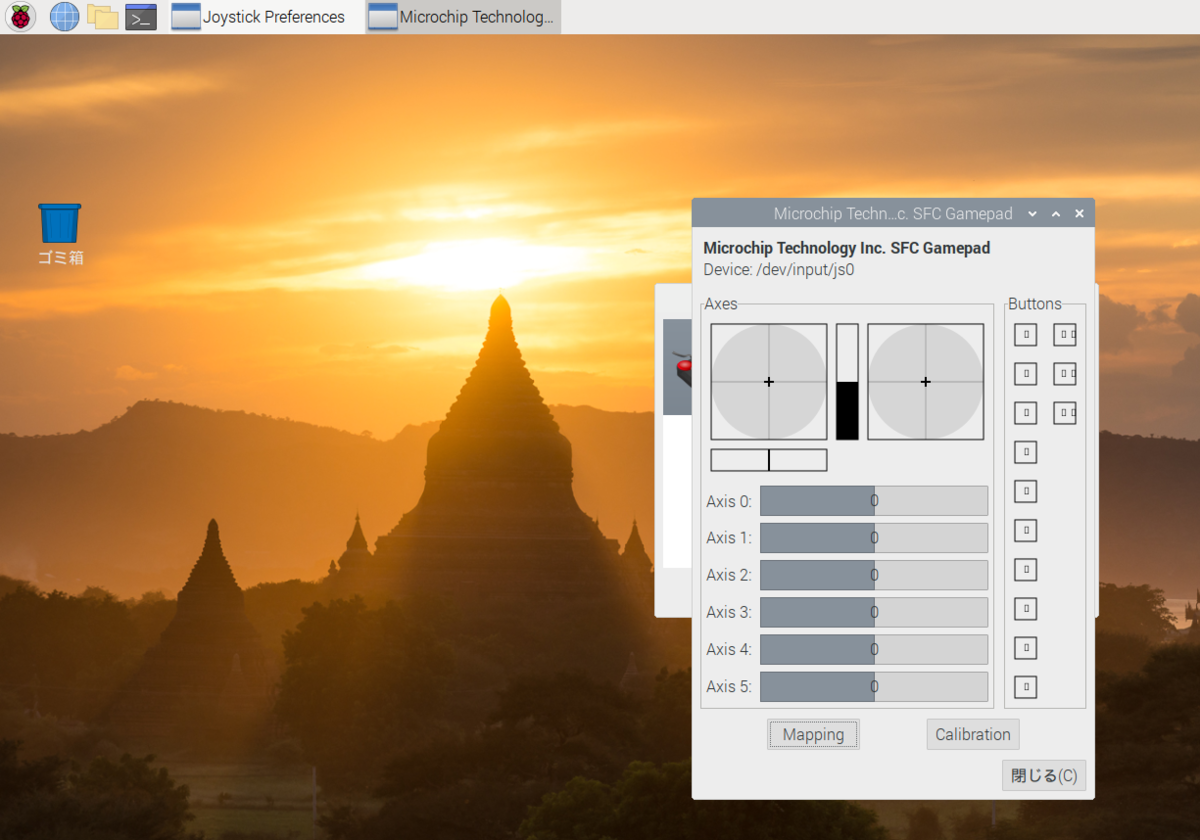
About controller setup in Steam
If you want to use the gamepad in Steam, please set it up from Big Picture mode.
This page is a helpful reference.
Steam controller settings! How to customize from the gamepad screen – Apple Geek LABO
If the controller isn’t recognized in Big Picture mode, open Steam’s Settings → Controller → General Controller Settings, select “SFC Gamepad”, and assign the buttons.
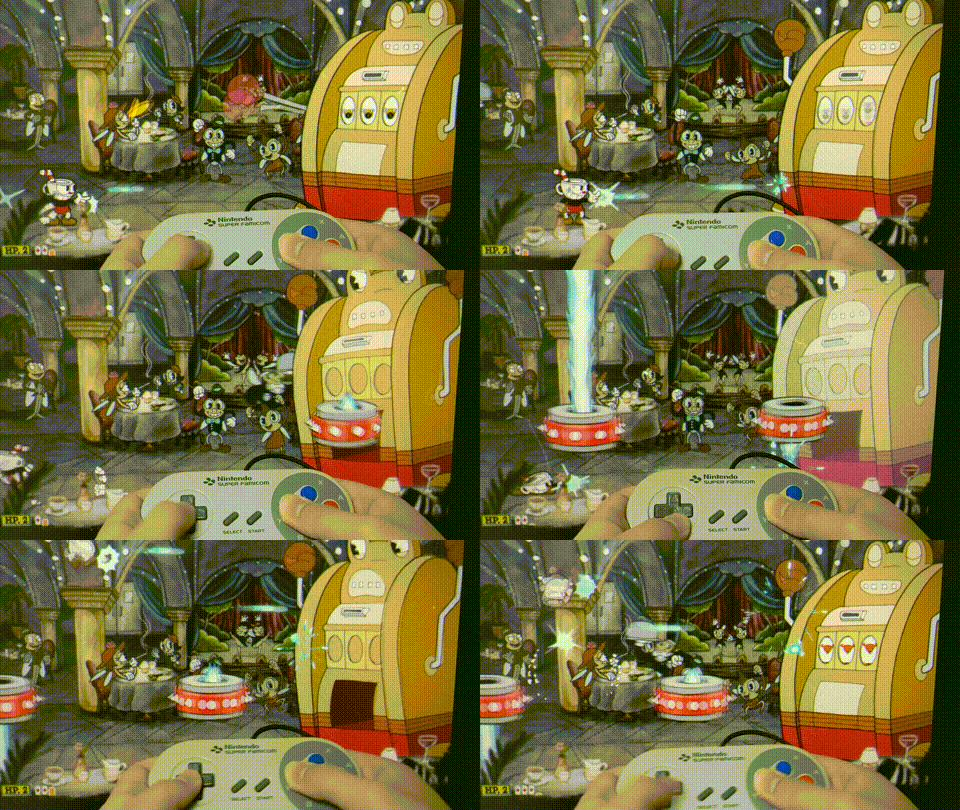
Demos
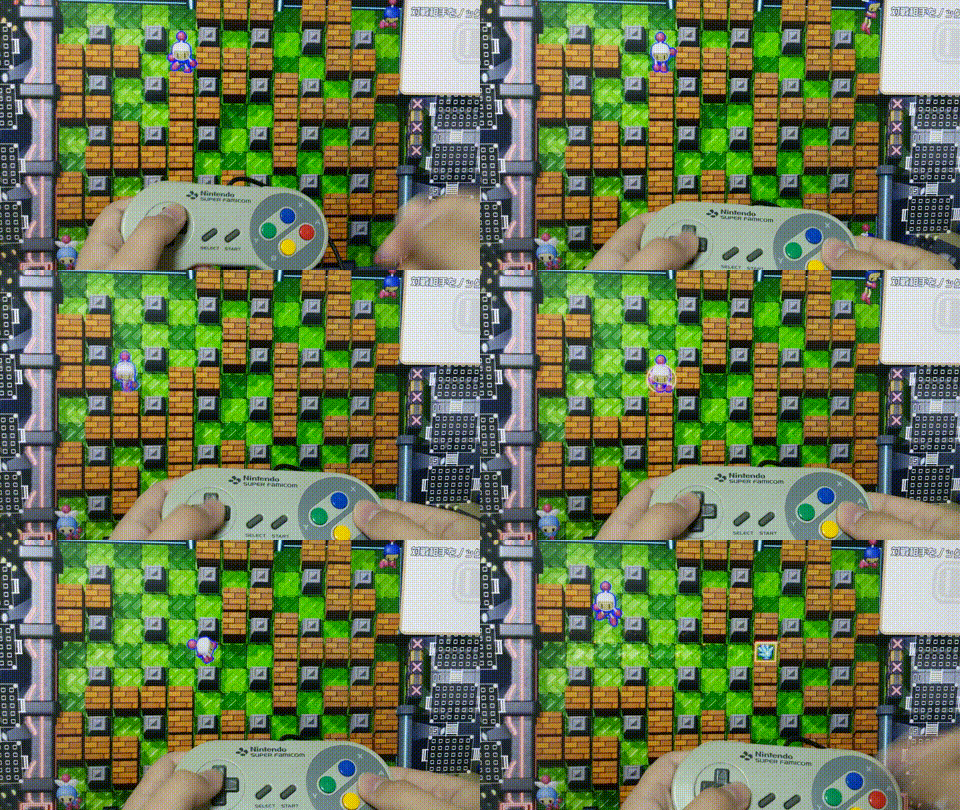
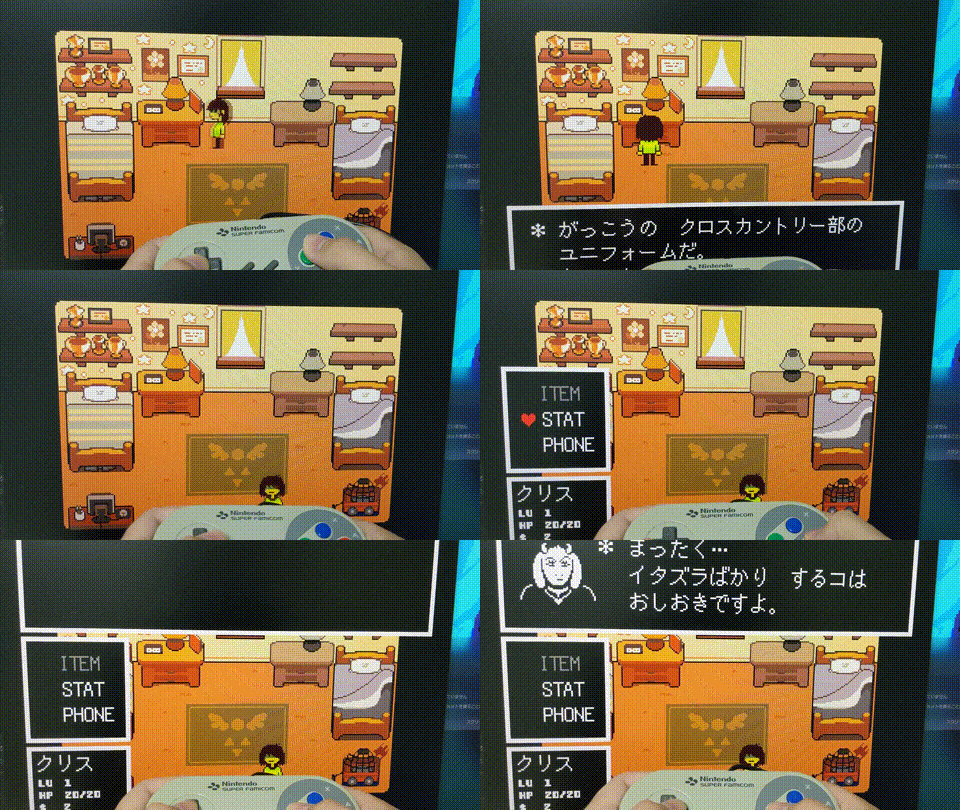
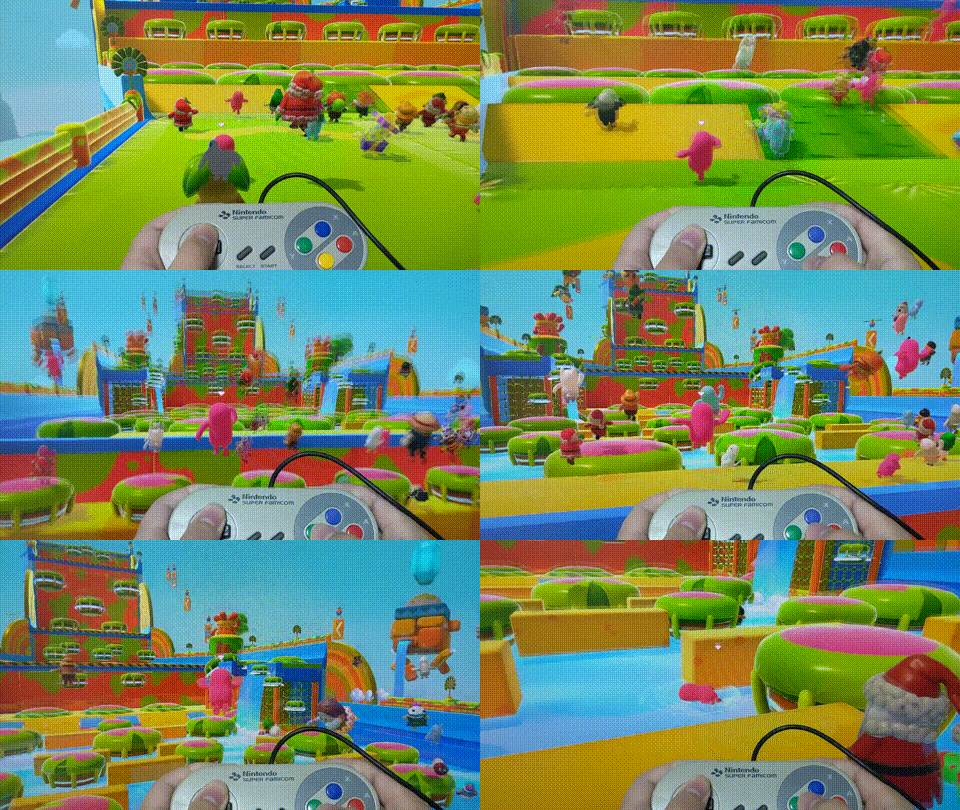
Something like a build diary
About flashing the firmware
Web tool for flashing firmware
We provide a firmware flashing tool.
You can use it with no installation required.
See this page for how to use it.
Firmware collection
You can check the latest firmware on the page below.
Latest firmware listBelow is a description of each firmware.
Original firmware
This is the firmware flashed at the time of purchase.
It works as a DirectInput gamepad.
It supports the button mapping tool.
Switch version
This is a version compatible with the Switch.
It supports the button mapping tool.
The default button assignments are as follows.
| SFC controller button | Default | After holding start+R |
|---|---|---|
| A | A | A |
| B | B | home |
| X | X | Right stick press |
| Y | Y | Left stick press |
| L | L | L trigger |
| R | R | R trigger |
| start | start | start |
| select | select | capture |
XInput version
This is a version compatible with XInput.
Hold select for 1 second or more to switch the D-pad mode.
Hold start for 1 second or more to change the R, L, B, X, and Y button assignments.
POLYMEGA version
Based on the XInput-compatible version, this is a version with the button layout optimized for the POLYMEGA.
Hold start+L for 1 second or more to switch the D-pad mode. (The default is hat switch mode.)
Hold start+R for 1 second or more to change the R, L, B, X, and Y button assignments.
After changing the button assignments by holding start+R, the X button maps to the POLYMEGA’s menu button.
CBOX USB V3.0 version
This is a version with the button layout optimized for the CBOX USB V3.0.
usb-sfc-pad/software/binary/v.CBOX.1.0.0.hex at master · takusan213/usb-sfc-pad · GitHub
Firmware by Eiichi Kinoshita (@kin_oei)
I tried modding the firmware for GEEKY Fab’s “SFC Controller USB Gamepad Conversion Board” (by Takusan @takusanToIssho). Absolutely no warranty.https://t.co/05f5O7SEEI #tegaki_dt pic.twitter.com/Sl49NKZf8J
— Eiichi Kinoshita (@kin_oei) February 22, 2022
They even set up a download page for it!!
Amazing!!
Kinomono! – List of works